Up and running in an evening
Coming from another team app, a spreadsheet or a league registration export? Bring your roster as a CSV and invite families by link or QR code.
How to move your team
- 1
Create your team
Your email, a sign-in code, your team’s name, sport, league and colors.
- 2
Import your roster
Upload a CSV from your current app, spreadsheet or league system. Skein matches columns, links siblings and skips duplicates. You confirm before anything saves.
- 3
Invite your people
Coaches are invited by email. Families join with the invite link or QR code you share (joinskein.com/join), or with the team code if they don’t have the link.
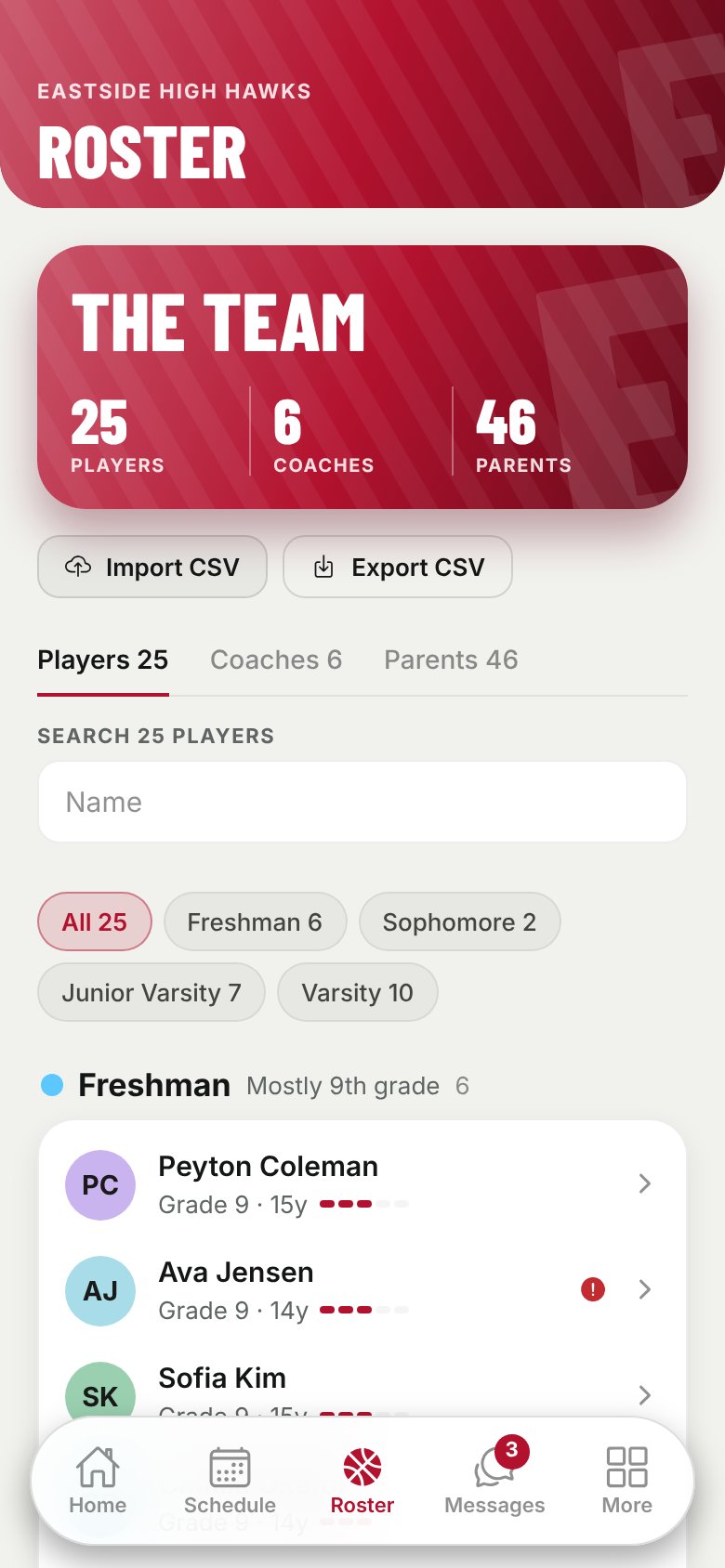
Import CSV, right from the roster
Headers don’t have to match exactly, siblings are linked and duplicates skipped. Nothing saves until you confirm. NICA Pit Zone exports work as-is.
Columns we understand
| Column | Example header | Needed? |
|---|---|---|
| Athlete name | First Name, Last Name | Yes |
| Birthdate | DOB | Recommended (decides under-13 handling) |
| Grade | Grade | Optional |
| Parent name and email | Parent 1 Email | Yes, so parents can be invited |
| Parent phone | Parent 1 Phone | Optional |
What moves
Athletes, parents and family links, grades and birthdates, coaches (invited separately). For an athlete under 13, the import invites the parent; the athlete is added only after the parent’s signed consent is approved.
What starts fresh
Old message history, payments taken in another app and past waivers stay where they are. Keep an export for your records.
Want a hand moving?
Send us your export and we’ll help you set up groups, fees and invites.